
iSolarCloud is Sungrow’s monitoring platform for solar inverters and batteries, available as a free phone app and a web portal. In Australia, as at November 2026, your installer normally creates the system (called a “plant”) and links it to your email address, so you log in with that email and a password you set. This guide is based on Sungrow’s own manuals and support pages, not hands-on use.
It is independent desk research; Solar Cobber has no relationship with Sungrow, did not test the app on a live system and was not paid for this guide. Nothing here asks you to open equipment or do electrical work.
Key facts
- iSolarCloud is Sungrow’s cloud monitoring platform and is offered as a phone app (Apple App Store and Google Play) and a web portal, according to the Sungrow Australia iSolarCloud product page checked in November 2026.
- The Sungrow SH-RS hybrid inverter manual (version 16, January 2023) says iSolarCloud accounts fall into two groups, end user and distributor or installer, and that the end user can view plant information, set parameters and share plants.
- The same Sungrow SH-RS manual says the Feed-in Limitation (export limit) function needs a Smart Energy Meter and is unavailable without one.
- The Sungrow SH-RS manual says Backup Mode is off by default and that an owner can set a reserved battery state of charge to keep for backup loads in a blackout.
- The Sungrow SH-RS manual says battery state of charge limits can be changed in the iSolarCloud app by qualified personnel, and lists a default range of 5 to 100 per cent for the Sungrow SBR battery.
What is iSolarCloud, and is the app the same as the web portal?
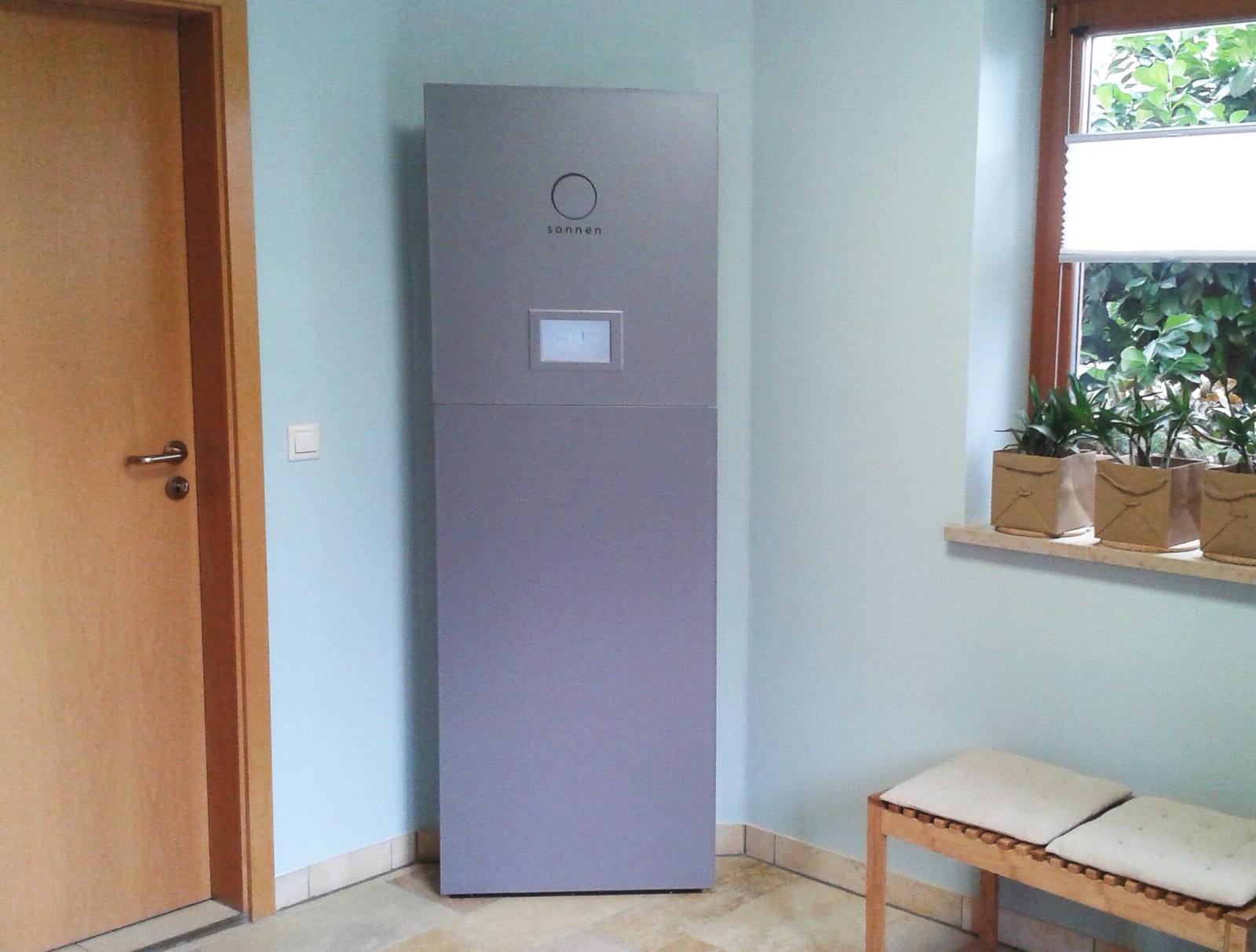
iSolarCloud is the cloud service that receives data from a Sungrow inverter, battery and meter through a communication module (a Wi-Fi or Ethernet dongle such as the WiNet-S). The app and the web portal draw on the same plant data, but Sungrow’s pages do not publish a feature-by-feature comparison.
Sungrow’s product page describes the app as the way to manage a solar and battery system from a phone, and points to a separate “iSolarCloud Web 3.0” system with its own user manual.
How do I create an iSolarCloud account and log in?
You register in the app by tapping Register, choosing the server for your region, selecting “End user”, and entering your email, a verification code, a password and your country.
Most Australian owners never create the plant themselves. The manual’s plant creation step has a field for the owner’s email, and says both registered and unregistered email addresses are supported. That is how an installer can hand a finished system to you: they enter your email, and you register with the same address.
If your login fails, check you picked the right server, because accounts are tied to a regional server.
Who controls the system, the owner or the installer?
The installer account can create and maintain plants and manage users and organisations, while the owner account can view data, set parameters and share the plant. The manual also says some settings (such as grounding detection) need an advanced account and password from the distributor or Sungrow, and warns that unauthorised use of it is not allowed.
How do I get access if my installer has closed?
Sungrow’s manual describes plant sharing and owner emails, but we could not find a published Sungrow procedure for transferring a plant away from a closed installer. If you cannot log in, the documented routes are the app’s password reset and Sungrow Australia’s service team through the online technical chat and email on its homeowner support page, which lists no phone number.
Have the inverter serial number and proof of purchase ready. If your installer has stopped trading, see our tracker of Australian solar company failures for what that means for warranty support, and browse solar installers in our directory for a local company that works with Sungrow.
What do the main iSolarCloud screens show?
The home screen shows a flow diagram of solar production, feed-in power, load and battery, plus today’s yield, direct consumption, battery state of charge and self-consumption rate. These are the numbers most owners watch.
Per the SH-RS manual, the app has four tabs: Home, Run Information, Records and More. Run Information lists PV, inverter, grid, load and battery data. Records shows daily, monthly, annual and total charts of generation, charging, feed-in and direct consumption, plus a fault alarm record and an event record.
What does a consumption meter add?
A smart energy meter at your switchboard lets the system see the grid connection point, which is what makes export limits and meaningful household consumption figures possible. Sungrow’s manual says the Feed-in Limitation function needs a Smart Energy Meter, and lists the meter in the hybrid inverter’s delivery contents.
Our Sungrow SH-RS hybrid inverter review notes that the meter is essential to battery control on a hybrid and carries only a short accessory warranty, so a meter failure after that period is your cost. If you have a string inverter instead, read the Sungrow SG-RS inverter review; without a meter, whole-home consumption is typically an estimate or unavailable.
Why is iSolarCloud not updating or showing offline?
The most common documented cause is that the communication module has lost its link to the home router, so the inverter keeps working but data stops reaching the cloud. Your solar and battery keep operating either way; only the reporting stops.
Sungrow Australia’s own Wi-Fi setup document, an older one dated 2018 for earlier modules, says the dongle must be plugged in and joined to the router, and that data should upload within about five minutes of a successful connection. The SH-RS manual says to press the WiNet-S multi-function button three times to bring up the hotspot if the signal or serial number cannot be found.
How do I reconnect my Sungrow inverter to Wi-Fi?
Use the app’s Local Access screen, join the “SG-” hotspot of the module, then select your home network and enter its password; The manual says the default local account is “user” with an initial password that you should change.
Why are my iSolarCloud totals wrong?
Wrong totals are usually a clock or meter issue. Sungrow’s manual says the inverter clock affects logged values, and a reversed meter wiring can raise a meter or CT reverse connection alarm (per the January 2023 manual); ask your installer to check.
What battery settings can I change in iSolarCloud?
Owners can usually view battery state of charge and adjust a few energy management settings, while protection and grid settings stay locked to installers. What appears depends on the inverter and firmware, so treat this list as what the Sungrow SH-RS manual describes.
| Setting | What Sungrow’s manual says | Who normally changes it |
|---|---|---|
| Backup Mode / reserved SOC | Off by default; sets a minimum battery level kept for backup loads in a blackout | Owner setting in the manual |
| Battery Forced Charge Time | Hours when the inverter charges the battery, solar first then grid | Energy management parameter |
| Battery Discharge Time | Hours when the battery may supply the house | Energy management parameter |
| Feed-in Limitation | Caps export; needs a Smart Energy Meter | Initial setting, usually the installer |
| SOC limits | Can be modified in the app by qualified personnel | Installer |
| Grid protection and grounding detection | Need an advanced account from the distributor or Sungrow | Installer only |
Table: battery and energy settings in iSolarCloud per the Sungrow SH-RS manual (version 16), checked November 2026.
Sungrow recommends setting the forced charge window in an off-peak tariff period; see peak and off-peak electricity times in Australia to find yours.
For hardware context, our reviews cover the Sungrow SBR battery and the Sungrow SBH battery, and our Sungrow battery price guide has installed costs.
What do common Sungrow fault codes mean?
A Sungrow fault code is a number shown under the app’s fault icon and in the Fault Alarm Record, and the app shows corrective measures for your device. Many codes are grid events that clear on their own.
The table below is a selection from the troubleshooting chapter of Sungrow’s current 1-phase hybrid inverter manual for the SH3.0RS to SH6.0RS models (document version Ver20, March 2025, read in November 2026). Sungrow states that a given device may contain only some of these codes. The manual’s table is laid out in staggered columns, so we kept only the rows where the alarm ID, name and corrective text line up unambiguously; other models and newer firmware may differ.
| Alarm ID | Alarm name | What Sungrow says, in plain terms |
|---|---|---|
| 2, 3, 14, 15 | Grid Overvoltage (also 4, 5 Undervoltage; 8, 9 frequency) | Usually reconnects once the grid returns to normal; if repeated, the local network operator may need to be contacted |
| 10 | Grid Power Outage | Grid supply was lost; reconnects after supply returns |
| 12 | Excess Leakage Current | Can be caused by poor sunlight or a damp environment; if it persists, the manual says to check that AC and DC cables are well insulated |
| 37 | Excessively High Ambient Temperature | Inverter generally resumes when temperature returns to normal; check ventilation and direct sun |
| 39 | Low System Insulation Resistance | Often weather related; if repeated, cable insulation must be checked by a qualified person |
| 88 | Electric Arc Fault | Disconnect DC and inspect cables and terminals (qualified person only) before the fault is cleared in the app |
Table: selected Sungrow alarm IDs from the SH3.0-6.0RS manual (Ver20, March 2025), read November 2026. The full manual lists many more codes, including battery, meter and communication alarms; check the manual for your model and the corrective text in your own app.
Sungrow’s homeowner support page also lists articles on a battery management system communication fault (EC714) and a back-up overload shutdown (EC51) on SH-RS and SH-RT models. Most corrective steps in the manual involve isolating switches or checking cables, which is work for a qualified installer, not an owner. If a code repeats, photograph the screen and contact your installer; for background on costs see solar inverter repair and replacement cost.
Who can see my iSolarCloud data?
Your plant data sits on Sungrow’s cloud server for your region, you can share a plant with other registered users, and your installer’s organisation can generally see plants it created. Sungrow’s product page claims permission controls and encrypted backups, which we could not audit.
We could not open a current Sungrow privacy policy for the iSolarCloud app, so we cannot say how long data is kept or how deletion requests are handled. Read the privacy notice shown at registration and the store listing’s data section before you sign up, and share a plant only with people you trust.
Can a retailer or VPP control my Sungrow battery?
Yes, if you opt in. A virtual power plant (VPP) is a group of home batteries that an operator controls together to export or hold energy at peak times. The Sungrow pages we read do not describe VPP operation, so the rules come from your retailer or VPP terms.
A retailer or VPP you authorise may override your own charge and discharge settings during events, so check whether you keep a minimum backup reserve and how to opt out. Our guide to what a VPP is in Australia covers the trade-offs.
What to check with your installer
Before commissioning, ask that the plant is registered under your own email, a smart meter shows sensible import and export, and backup reserve and charge windows match your tariff. If you do not yet have an installer, browse our directory of installers.
FAQ
What is iSolarCloud?
iSolarCloud is Sungrow’s free cloud monitoring platform for solar inverters, batteries and meters, offered as a phone app and a web portal. It shows production, consumption, feed-in and battery charge. Sungrow also uses it for fault alerts and remote service.
How do I log in to iSolarCloud?
Log in with the email and password of your registered end user account, after selecting the correct regional server. Your installer normally creates the plant with your email address. If you have no account yet, register as an end user in the app with that same email.
Why is iSolarCloud not updating?
The usual documented cause is that the Wi-Fi module has lost its connection to your router, so data stops uploading even though the system still works. Check your router and password. Sungrow says a successful reconnection should upload data within about five minutes.
Can I change my Sungrow battery settings in the app?
You can change some energy management settings, such as backup reserve and charge or discharge hours, but protection and grid settings are locked to installers. Which settings appear depends on your inverter and firmware. Ask your installer to confirm your options.
What do Sungrow fault codes mean?
Each code is an alarm ID that the app explains with corrective measures. Many grid-related codes clear on their own once the grid returns to normal. Repeated arc, insulation and battery codes should go to your installer or Sungrow.
What if my installer has closed?
Contact Sungrow Australia through its homeowner support page, and have your serial number and proof of purchase ready. We could not find a published Sungrow procedure for transferring a plant. You may also need a new installer to handle warranty work.
Sources
- Sungrow Australia, iSolarCloud product page
- Sungrow Australia, homeowner support page
- Sungrow, SH3.0RS to SH6.0RS 1-phase hybrid inverter user manual, Ver20, March 2025 (fault code table)
- Sungrow, SH3.0RS to SH6.0RS 1-phase hybrid inverter user manual, version 16, January 2023
- Sungrow Australia, Wi-Fi setup instructions for web monitoring (2018)
- Sungrow, iSolarCloud on Google Play
About this guide
By the Solar Cobber editorial team. This is independent desk research checked in November 2026, based on Sungrow’s published documents rather than hands-on use. Solar Cobber is a free directory that may earn referral or advertising fees from installers, and commercial relationships never affect our content. This is general information, not financial or electrical advice. Corrections are welcome via /contact.
Filed under Solar Guides
Back to blog