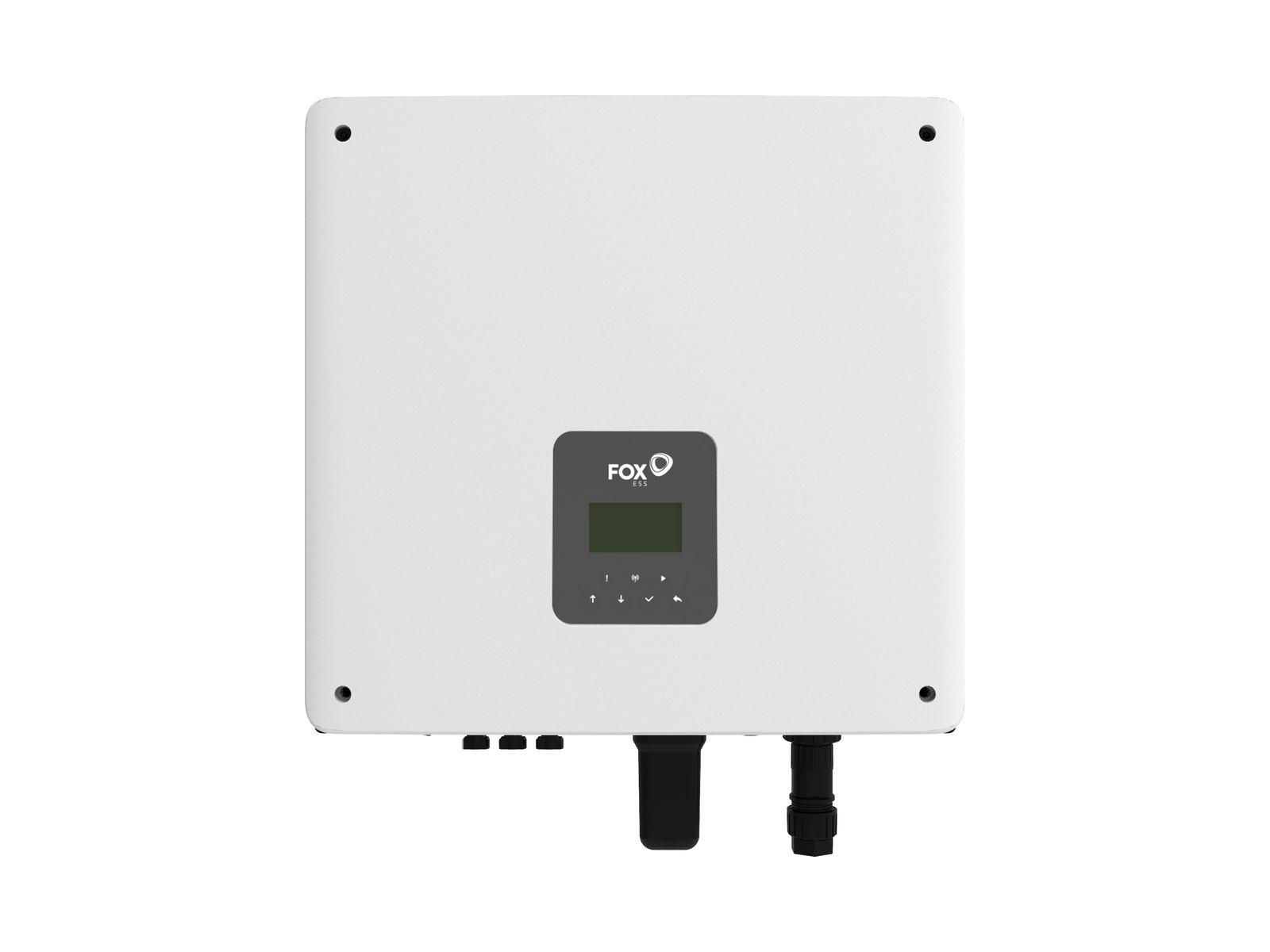

SolaX Cloud is the monitoring platform for SolaX solar inverters and batteries. You use it through the free SolaXCloud app (Apple App Store and Google Play) or by logging in at www.solaxcloud.com in a web browser. Your installer normally connects a Pocket WiFi or LAN dongle to the inverter, and the dongle sends data to the cloud.
This guide is independent desk research from SolaX’s own manuals and Australian support pages, checked November 2026. Solar Cobber has no relationship with SolaX, did not test the app on a live system and was not paid. Nothing here asks you to open the inverter or switchboard.
Key facts
- SolaX’s X1-Hybrid G4 user manual (Version 5.0, change history dated 5 September 2025) says to register, log in and add a site at www.solaxcloud.com, or to use the SolaXCloud app from the App Store or Google Play.
- SolaX’s Pocket WiFi V3.0 user manual says the dongle works on 2.4 GHz Wi-Fi only, and that 5 GHz Wi-Fi is not available.
- The SolaX product page for the Pocket WiFi V3.0-P, Pocket WiFi+LAN and Pocket WiFi+4GM lists a data transfer interval of 5 minutes or an optional 10 seconds, IP65 protection and a -35 to +60 degrees Celsius operating range, as checked in November 2026.
- SolaX’s Australian warranty terms (V1.6) require SolaXCloud registration with the invoice and serial number, and give Wi-Fi dongles and meters a 2-year term against 10 years for the X1-Hybrid G4 and X3-Hybrid G4 inverters.
- The X1-Hybrid G4 manual lists six on-grid work modes: Self-use, Feed-in Priority, Backup, Peak shaving, TOU and Manual, and says Manual mode is for qualified personnel only.
- A 6.6 kW system in Sydney should average about 25.7 kWh a day on Clean Energy Council guide figures, so a SolaXCloud daily yield far below that on a clear day is worth raising with your installer.
What is SolaX Cloud, and what is the SolaXCloud app?
SolaX Cloud is the cloud service that receives data from a SolaX inverter, battery and meter. The SolaXCloud app is its phone version, and www.solaxcloud.com is the web version. SolaX describes it as a home energy platform that combines monitoring, device management and secure data communication.
The same account works on both. The X1-Hybrid G4 manual notes that its app screenshots come from SolaXCloud app V6.0.0 and may differ in newer versions, so menu names can shift. SolaX also runs a separate Developer Portal and a design tool (SolaXDesign) for installers, which an owner does not need.
For hardware context, read our SolaX inverter review and our SolaX battery review.
This is SolaX Power’s own short video on signing up and binding a new device in SolaXCloud.
How do I log in and set up a SolaX Cloud account?
Register with your email at www.solaxcloud.com or in the SolaXCloud app, then add your system as a “site” using the registration number printed on the dongle. The manual’s own instruction is to complete registration, login and site adding according to the help document on the website.
SolaX’s Pocket WiFi manual gives the same order: connect the dongle to your home network, open www.solaxcloud.com, pick a language, read the user guide, create an account, add a site, then use “Warranty Manage” to add your installation details so the warranty is recorded.
Two points matter for Australian owners:
- Register in your own name. SolaX’s warranty terms list failure to register on SolaXCloud as an exclusion, so ask your installer to confirm the site is under your email, not only theirs.
- Installers have a separate sign-up. SolaX publishes a video titled “Register as an Installer on SolaXCloud” for installers, which suggests owner and installer accounts are separate. SolaX does not publish a feature-by-feature comparison that we could find.
If your installer has closed, see our tracker of Australian solar company failures, and find a local installer in our directory. SolaX Power Aus runs the Australian warranty process, so keep your serial number and invoice.
How do I connect a SolaX inverter to Wi-Fi?
The dongle must join a 2.4 GHz network, and the router must be within range of the inverter. SolaX’s X1-Hybrid G4 manual says the router should be no more than 100 metres from the inverter in open space, or 20 metres if there are walls between, and suggests a Wi-Fi booster where the signal is weak.
The manual also says Wi-Fi can be configured only after the inverter is powered on. Fitting or replacing a dongle means working at the inverter, so SolaX’s guides tell installers to power down first and wait at least five minutes. Leave that to your installer.
What are the Pocket WiFi dongle options?
SolaX sells three Pocket models that plug into the inverter’s dongle port.
| Dongle | Connection | Extras listed by SolaX | Data interval |
|---|---|---|---|
| Pocket WiFi V3.0-P | Wi-Fi 2.4 GHz | External antenna; IEEE 2030.5 and OpenADR support marked with an asterisk | 5 minutes or 10 seconds optional |
| Pocket WiFi+LAN | Wi-Fi 2.4 GHz or LAN cable | Modbus TCP; automatic switching between Wi-Fi and LAN | 5 minutes or 10 seconds optional |
| Pocket WiFi+4GM | Wi-Fi 2.4 GHz plus mobile | OpenADR and IEEE 2030.5 (asterisked) | 5 minutes or 10 seconds optional |
Table: SolaX Pocket dongle options, from the SolaX Australia monitoring dongles page, checked November 2026. SolaX does not say which are standard on Australian systems.
What is Local Mode?
Local Mode lets your phone talk to the dongle directly without the internet. The Pocket WiFi V3.0 manual says to connect your phone to the dongle’s own Wi-Fi signal (named like Wifi_SW followed by the serial number), then choose Local in the app. The initial password is the same as the registration number.
On the newer Pocket WiFi V4.0, SolaX’s installation manual says to press the function key once to switch on the access point before using Local Mode.
How do I read the SolaXCloud dashboard?
The main screen is a live power flow diagram showing solar, home load, battery and grid. SolaX’s Australian guide says positive battery power means charging, negative means discharging, and that your home load equals solar plus battery plus or minus grid power.
| Term in the app | What it means | Why it matters |
|---|---|---|
| PV power | Power your panels make right now, in kW | Flattens at the inverter rating on a sunny day (clipping); normal on oversized arrays |
| Load | What your home is using right now | Needs a meter or CT for a true whole-home figure |
| Battery SoC | Battery state of charge, in per cent | Min SoC is 10% by default in the X1-Hybrid G4 manual, adjustable |
| Self-use | Solar used in the home or stored | Saves you the full import rate |
| Feed-in (export) | Surplus sent to the grid | Earns only your feed-in rate |
| Consumed (import) | Power bought from the grid | The main charge on your bill |
Table: SolaXCloud terms, from SolaX Power Australia’s “How to Read Your SolaXCloud App” guide and the X1-Hybrid G4 manual, checked November 2026.
SolaX’s own Australian guide says self-use energy is worth several times what exporting earns, quoting 30 to 45 c/kWh for imports against 3 to 8 c/kWh for feed-in. Your actual rates depend on your retailer, so check peak and off-peak electricity times.
Which work mode should I use?
Self-use is the default and suits most homes, according to both the manual and SolaX Australia. The manual lists six modes.
| Mode | Priority order (per manual) | Typical use |
|---|---|---|
| Self-use | Solar to loads, then battery, then grid | Default; maximises self-consumption |
| Feed-in Priority | Loads, then grid, then battery | Areas with high feed-in rates |
| Backup | Loads, then battery, then grid | Frequent blackouts; keeps a reserve |
| Peak shaving | Limits grid draw to a set level | Demand tariffs |
| TOU | Different modes by time slot | Time-of-use tariffs, set in the app |
| Manual | Forced charge or discharge | Qualified personnel only; reverts after six hours |
Table: X1-Hybrid G4 work modes, from the SolaX X1-Hybrid G4 User Manual Version 5.0, read November 2026. Which modes appear depends on inverter, firmware and installer settings.
If a retailer or VPP controls your battery, it may override these settings. Our VPP guide explains the trade-offs.
Why is SolaX Cloud offline or showing no data?
The usual cause is that the dongle has lost its connection to your router, so the inverter keeps working but reporting stops. Your panels and battery operate whether or not SolaX Cloud is online.
| Symptom | Likely cause | What an owner can safely do | When to call the installer |
|---|---|---|---|
| Site shows offline | Router replaced, Wi-Fi password changed, or router rebooted | Restart your router, then wait a few minutes; check the password still matches | If it stays offline after the router is working |
| Dongle will not join | Router only offers 5 GHz, or one name for both bands | Create a separate 2.4 GHz network on the router | If no 2.4 GHz option exists |
| Weak or dropping link | Inverter in a garage or far from router | Move the router closer or add an extender | If a LAN dongle is better |
| Data lag or gaps | Dongle set to a 5-minute interval | Check the Pocket model and setting | To enable 10-second data |
| Wrong totals or no load figure | Meter or CT missing, miswired or offline (IE 109 meter fault) | Note the code and screenshot it | Always; meter wiring is installer work |
| Cannot log in | Wrong email or forgotten password | Use the password reset on the login screen | If the site is under your installer’s account only |
Table: common SolaX Cloud problems and safe responses, combining the Pocket WiFi manual with SolaX Australia’s Wi-Fi guide, checked November 2026.
What do the dongle lights mean?
It depends on the dongle version, so check the label. SolaX’s Pocket WiFi V4.0 installation manual (Version 1.0) says:
| Light | Meaning |
|---|---|
| Red, flashing | Inverter connection abnormal |
| Red, always on | Router connection abnormal |
| Green, flashing | Over-the-air (OTA) upgrade in progress |
| Green, always on | All connections normal |
| Red and green, alternating | Server connection abnormal |
Table: Pocket WiFi V4.0 status light, from the SolaX Pocket WiFi V4.0 Installation Manual, Version 1.0.
SolaX Australia’s Wi-Fi guide describes the older V3 dongle’s lights differently, including a solid green light for a successful connection and solid red for a failed pairing. Both guides agree that a healthy dongle shows green.
What do SolaX error and fault codes mean?
A SolaX fault code starts with IE for inverter errors or BE for battery errors, and the manual gives a short diagnosis for each. Many grid codes clear by themselves once the grid returns to normal.
The table below is a selection from Table 12-1 of the X1-Hybrid G4 User Manual, Version 5.0. Codes and numbering vary by model and firmware, and SolaX Australia’s blog posts on individual codes do not always match this table, so check the manual for your exact inverter.
| Code | Name | What SolaX says, in plain terms |
|---|---|---|
| IE 02 | Grid Lost Fault | Check the grid connection; for off-grid, check EPS loads are not over the limit |
| IE 03 | Grid Volt Fault | Wait; the system reconnects when the grid returns to normal |
| IE 04 | Grid Freq Fault | Same as above, for grid frequency |
| IE 08 | AC10mins Volt | Grid voltage out of range for 10 minutes; recovers when grid does |
| IE 13 | Isolation Fault | Check wire insulation; wait; contact SolaX if it repeats |
| IE 14 | Temp Over Fault | Check the ambient temperature is within limits |
| IE 16 | EPS Overload Fault | Switch off high-power devices on the backed-up circuit |
| IE 19 | BMS Lost | Battery communication lost; cable check by installer |
| IE 22 | Arc Fault | Check the PV cables; contact SolaX if it cannot clear |
| IE 109 | Meter Fault | Check meter, cable and communication settings |
Table: selected SolaX X1-Hybrid G4 fault codes, X1-Hybrid G4 User Manual Version 5.0, read November 2026. Most remedies in the full table involve disconnecting PV, grid or battery, which is for a qualified installer.
Isolation, arc and battery (BE) codes are safety-related. Photograph the screen, note the time, and contact your installer. Our inverter repair and replacement cost guide explains what a fix can cost out of warranty.
Is SolaX Cloud free, and how long is data kept?
We found no subscription fee for owners on SolaX’s pages. The app is a free download, and the product page describes the dongle as having offline data storage that resumes uploading. We could not find a published data retention period or a privacy summary specific to SolaXCloud, so read the privacy notice shown at registration.
Data intervals are the practical difference: the dongle’s data transfer interval is 5 minutes with 10 seconds optional.
View the data as a table
| Warranty years | |
|---|---|
| X1-Hybrid G4 inverter | 10 years |
| X3-Hybrid G4 inverter | 10 years |
| SolaX batteries (to 70% capacity) | 10 years |
| Meter, Matebox, Wi-Fi dongle | 2 years |
The dongle and meter that SolaXCloud depends on carry a 2-year warranty, so a failed one in year 4 is likely to be a paid replacement. Our SolaX inverter review covers the rest of the fine print.
What should my SolaX system produce each day?
A healthy system should produce roughly its size in kW multiplied by the city’s daily output per kW. Compare that with the daily yield in SolaXCloud on a clear day, not an overcast one.
View the data as a table
| CEC guide output | |
|---|---|
| Alice Springs | 5.0 kWh |
| Darwin | 4.4 kWh |
| Perth | 4.4 kWh |
| Canberra | 4.3 kWh |
| Brisbane | 4.2 kWh |
| Adelaide | 4.2 kWh |
| Sydney | 3.9 kWh |
| Melbourne | 3.6 kWh |
| Hobart | 3.5 kWh |
Alice Springs gives about 5.0 kWh per kW and Hobart about 3.5, roughly 30% less.
Solar Cobber calculation: multiply the figure by your array size in kW. The Clean Energy Regulator’s deemed rating (zone rating times system size, divided by 365) is a more conservative floor.
- CEC guide
- CER deemed
View the data as a table
| CEC guide | CER deemed | |
|---|---|---|
| Alice Springs | 33.0 kWh | 29.3 kWh |
| Darwin | 29.0 kWh | 27.8 kWh |
| Perth | 29.0 kWh | 25.0 kWh |
| Canberra | 28.4 kWh | 25.0 kWh |
| Brisbane | 27.7 kWh | 25.0 kWh |
| Adelaide | 27.7 kWh | 25.0 kWh |
| Sydney | 25.7 kWh | 25.0 kWh |
| Melbourne | 23.8 kWh | 21.4 kWh |
| Hobart | 23.1 kWh | 21.4 kWh |
On a clear day a healthy 6.6 kW system in Perth should show roughly 25 to 29 kWh, and one in Melbourne 21 to 24 kWh.
Two SolaX-specific points. A common 6.6 kW array on a 5 kW inverter will flatten at the inverter limit at midday, which SolaX Australia calls normal, and on the X1-Hybrid G4 5.0 our review notes the export cap of 4,999 W. Neither lowers the daily total much. These are annual averages: summer beats them and winter falls well below, and we did not source monthly figures, so judge against a rolling week. See our what size solar system guide and cloudy days guide.
Third-party monitoring and integrations
SolaX lists a Developer Portal at developer.solaxcloud.com for its API, and the Pocket WiFi+LAN lists Modbus TCP. We did not verify a specific Home Assistant integration, so check its documentation before buying hardware for it.
On VPPs, our review notes Reposit Power uses SolaX G4 hybrids, and that SolaX says it supports Amber and Origin programs, though Amber’s SmartShift compatibility page did not list SolaX in October 2026. See our Amber Electric review. For other brands, compare the Fronius Solar.web guide, GoodWe SEMS portal guide, Fox ESS cloud guide and iSolarCloud guide.
When to call your installer
Call your installer when an isolation, arc, meter or battery code repeats, when the site stays offline after your router and password are right, when output stays well under the expected figure on clear days, or when you want work modes or export limits changed. Do not open the inverter, dongle cover, battery or switchboard. If you need a new installer, browse the directory and read how to choose a solar installer.
FAQ
How do I log in to SolaX Cloud?
Go to www.solaxcloud.com or open the SolaXCloud app and log in with the email and password you registered. If you have no account, register with your email and add your system with the registration number on the dongle. Ask your installer to confirm the site is under your account.
Is the SolaXCloud app free?
The SolaXCloud app is a free download on the Apple App Store and Google Play, and we found no owner subscription fee on SolaX’s pages. Check the terms shown at registration, because SolaX does not publish pricing details we could verify.
Why does SolaX Cloud say offline?
The usual reason is that the dongle has lost its link to your router, for example after a new router or a changed Wi-Fi password. The inverter still works. Restart the router, confirm a 2.4 GHz network, and call your installer if it does not return.
Does a SolaX Pocket WiFi dongle work on 5 GHz?
No. SolaX’s Pocket WiFi V3.0 manual says 5 GHz Wi-Fi is not available. Create a separate 2.4 GHz network on your router for the dongle.
What does SolaX error code IE 03 mean?
IE 03 is a Grid Volt Fault, meaning grid voltage went out of range. SolaX’s manual says to wait, and the system reconnects when the grid returns to normal. If it repeats often, ask your installer about local network voltage.
Do I need to register my SolaX system on SolaXCloud for the warranty?
Yes. SolaX’s Australian warranty terms (V1.6) list failure to register on SolaXCloud as an exclusion and require the invoice and serial number. Register as soon as the system is installed.
Can I change SolaX work modes in the app?
You can change some modes such as Self-use or Backup, depending on your inverter and what your installer has unlocked. SolaX says Manual mode is for qualified personnel only and reverts after six hours.
Sources
- SolaX, X1-Hybrid G4 Series User Manual, Version 5.0 (fault table, work modes, SolaXCloud chapter)
- SolaX, Pocket WiFi V3.0 (-P/-E) User Manual
- SolaX, Pocket WiFi V4.0 Installation Manual, Version 1.0
- SolaX Australia, monitoring dongles product page
- SolaX Australia, How to Read Your SolaXCloud App
- SolaX Australia, how to connect a SolaX inverter to Wi-Fi
- SolaX Australia, SolaXCloud smart energy management page
- SolaX Warranty Terms and Conditions, Australia V1.6
- Clean Energy Regulator, postcode zone ratings
- SolaX Power, SolaXCloud Guide for Homeuser (YouTube)
About this guide
By the Solar Cobber editorial team. This is independent desk research checked in November 2026, based on SolaX’s published documents rather than hands-on use. Solar Cobber is a free directory that may earn referral or advertising fees from installers, and commercial relationships never affect our content. This is general information, not financial or electrical advice. Corrections are welcome via /contact.
Filed under Solar Guides
Back to blog